

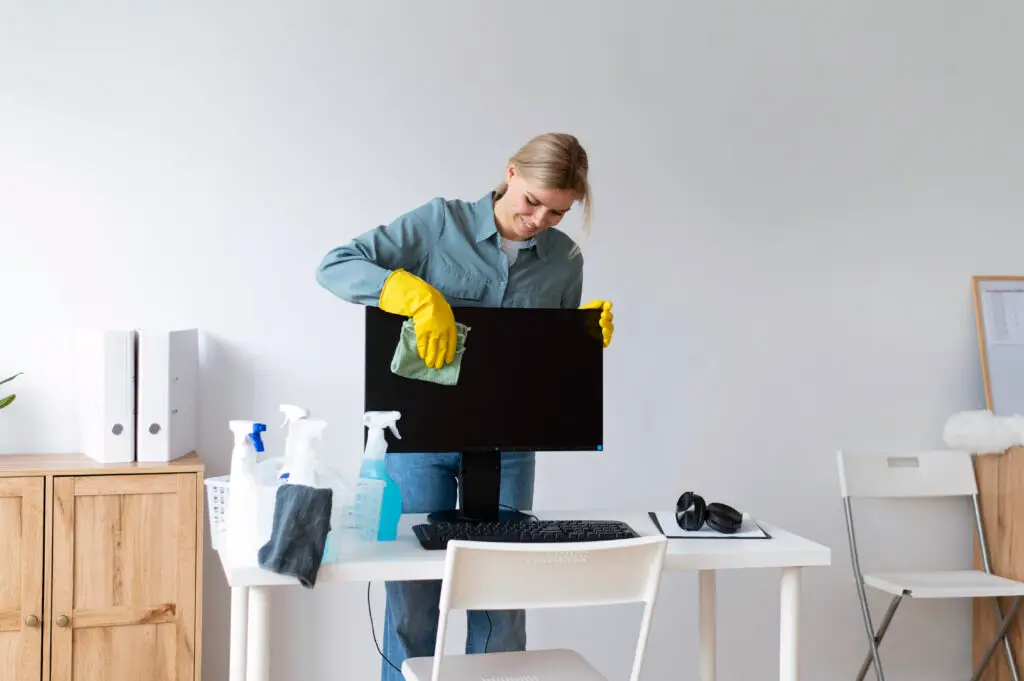
In a world increasingly dominated by screens, keeping our digital windows clean is essential for clarity and eye comfort. When your computer monitor or laptop screen gets smudged, dusty, or greasy, it’s tempting to grab the nearest cleaning solution – perhaps your trusty eyeglass cleaner. But while both are designed to clean delicate transparent surfaces, there’s a crucial difference: Can I use eyeglass cleaner on my computer screen? The simple answer is generally no, you should avoid it. Understanding why, and what is safe, will help you keep your screens sparkling without causing damage.
Differences between eyeglass and screen cleaners
While seemingly similar, eyeglass cleaners and screen cleaners are formulated differently to suit their specific surfaces.
- Eyeglass Cleaners:
- Formulation: Often contain alcohol (like isopropyl alcohol or ethanol), ammonia, or other solvents designed to quickly cut through skin oils, hairspray, makeup, and fingerprints on glass lenses.
- Purpose: Optimized for traditional glass or plastic spectacle lenses, which are typically hard, non-porous, and resistant to certain chemicals.
- Residue: May leave a slight residue or film that’s acceptable on eyeglasses but can be distracting on a larger screen.
- Screen Cleaners:
- Formulation: Specifically designed to be gentle and non-damaging to the delicate anti-glare coatings, anti-reflective layers, and plastic surfaces common on modern computer monitors, LCD, LED, and touchscreen displays. They are typically alcohol-free, ammonia-free, and solvent-free.
- Purpose: Focused on safely removing dust, fingerprints, and smudges without stripping coatings or leaving streaks on sensitive electronic displays.
- Residue: Formulated to evaporate quickly and leave no residue for optimal viewing clarity.
What’s safe for LCD, LED, and touchscreens
Modern computer screens, including LCD (Liquid Crystal Display), LED (Light Emitting Diode), and various touchscreens, have sensitive coatings that can be easily damaged by harsh chemicals.
- LCD and LED Monitors: These displays often feature anti-glare or anti-reflective coatings that can be permanently stripped or clouded by alcohol, ammonia, or other strong solvents. Once damaged, these coatings cannot be repaired, leading to a hazy or uneven screen.
- Touchscreens: Many touchscreens have an oleophobic (oil-repelling) coating that helps prevent fingerprints. Alcohol-based cleaners can strip this coating, making the screen more prone to smudges and harder to clean in the future.
- Best Practice: Always assume your screen has a delicate coating and treat it accordingly.
Ingredients to avoid on screens
To protect your valuable electronics, steer clear of cleaning products containing these ingredients:
- Alcohol (Isopropyl Alcohol, Ethanol): While common in many household cleaners and hand sanitizers, alcohol can strip anti-glare and oleophobic coatings, leading to permanent haziness, cloudiness, or a sticky feel.
- Ammonia: Found in many glass cleaners (like window cleaner), ammonia is highly corrosive and can cause irreversible damage to screen coatings.
- Acetone: A very powerful solvent (found in nail polish remover) that will almost certainly melt or severely damage plastic screen surfaces and coatings.
- Toluene: Another harsh solvent that can damage plastics and coatings.
- Ethyl Acid: Corrosive and damaging to delicate electronics surfaces.
- Methyl Ethyl Ketone (MEK): A very strong solvent.
- Abrasives: Never use abrasive cloths, paper towels, or cleaners with abrasive particles, as they will scratch the screen surface.
Best practices for cleaning without damage
Follow these steps for a safe and effective screen cleaning routine:
- Turn Off and Unplug: Always power down your computer or monitor and unplug it from the wall. Cleaning a dark screen makes dust and smudges more visible, and unplugging eliminates any electrical risk.
- Use the Right Cloth: The most crucial tool is a clean, soft microfiber cloth. These cloths are designed to trap dust and grime without scratching delicate surfaces. Avoid paper towels, tissues, or rough cloths, which can leave lint or cause micro-scratches.
- Dust First: Gently wipe the screen with a dry microfiber cloth to remove loose dust. Use light pressure.
- Dampen, Don’t Spray: If dust remains or you have fingerprints/smudges, lightly dampen a separate clean section of your microfiber cloth with distilled water or a dedicated screen cleaner. Never spray liquid directly onto the screen. Liquids can seep into the bezels and cause internal damage or short circuits.
- Wipe Gently: Gently wipe the screen in a single direction (e.g., from top to bottom) or in small, circular motions, applying very light pressure.
- Buff Dry: Use a dry section of your microfiber cloth (or a second clean, dry microfiber cloth) to buff the screen dry, preventing streaks and water spots.
- Clean the Bezel: Don’t forget to wipe down the plastic bezel (frame) around the screen with a slightly damp cloth.
Recommended cleaning products
For optimal safety and effectiveness, stick to products specifically designed for electronics screens.
- Microfiber Cloths: Invest in several good quality, lint-free microfiber cloths.
- Distilled Water: For the most basic and safest clean, distilled water (not tap water, which can leave mineral deposits) is an excellent choice.
- Dedicated Screen Cleaning Solutions:
- These are widely available from electronics stores or online retailers.
- Look for formulas that are explicitly labeled as “alcohol-free,” “ammonia-free,” and “safe for LCD/LED/touchscreens.”
- Many come as a spray bottle with an accompanying microfiber cloth.
By using the correct cleaning materials and methods, you can ensure your computer screen remains clear, vibrant, and free from damage, providing you with an optimal viewing experience for work or play.